
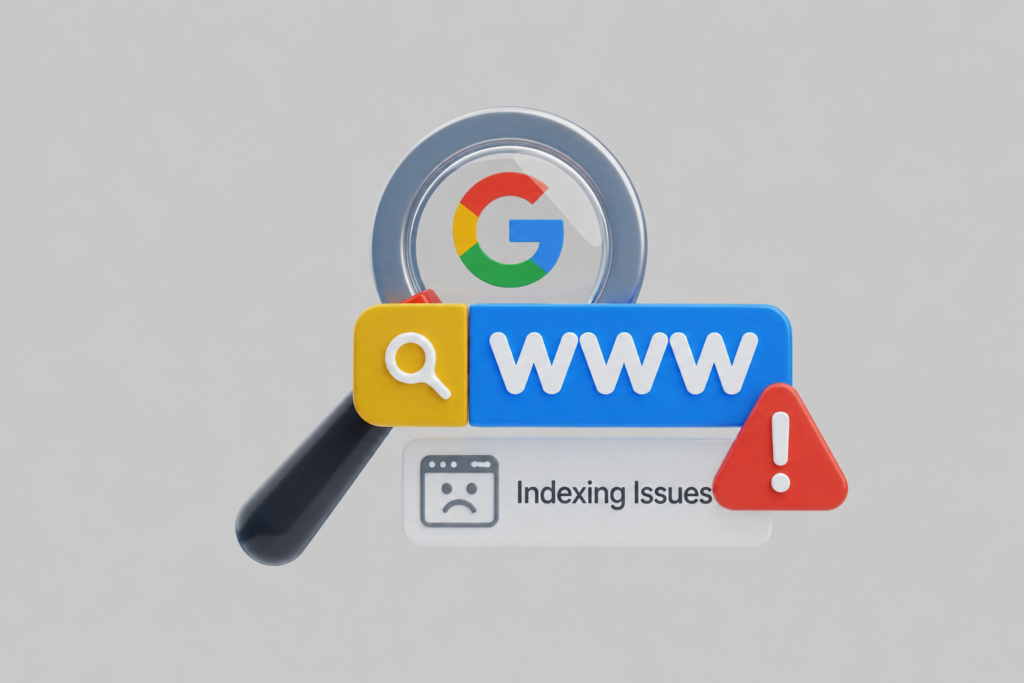
You have spent countless hours doing keyword research, created a great piece of content, optimized on-page factors, and published it. Weeks have gone by, and traffic to your analytics is still flat. Then you searched for your exact title on Google, and nothing appears.
The hard truth about SEO today is straightforward: If Google didn’t index your page, the content isn’t there.
Latest enterprise SEO reports suggest that for big sites, anywhere between 15% to 20% of the entire site pages are completely omitted from Google’s index because of trivial configuration faults and technical bottlenecks. Now, this is a huge contributor to missed organic traffic and revenue.
Understanding how Google processes your site from initial discovery to a search result appearing on screen is very important for bridging these performance gaps.
The Journey from Discovery to Indexation
Before taking a look at the errors, it is necessary to precisely define how Googlebot determines your URLs. The pipeline is not a one-step process but a multilayer pipeline composed of the discovery, the queuing, the crawling, the rendering, and the indexing.
The bottleneck in your site’s indexing can be at any point in this pipeline. Here are the detailed 10 most frequent indexing problems that block organic growth, how to detect the problem, and how to permanently solve it.
10 Google Indexing Issues
1. The Accidental noindex Tag left in Production
The Symptom
On GSC, your URLs are marked as: Excluded by ‘noindex’ tag.
Why It Happens
This is perhaps the single most obvious mistake in web development. For safety, developers normally use a global site-wide/template-wide component like the following in their staging environment to prevent search engines from scraping their staging URLs: <meta name=”robots” content=”noindex.”>
However, that meta element gets transferred to the live production server when the site or feature gets promoted to production.
How to Find It
- Open your live page, right-click, and select View Page Source.
- Press Ctrl + F (or Cmd + F) and search for noindex.
- Alternatively, run a live URL inspection inside Google Search Console to see if the Googlebot fetch is blocked by a robots meta tag.
How to Fix It
Identify the code that is causing this message in your CMS or header template, and delete it. In WordPress, go to Settings > Reading and find the box marked “Discourage search engines from indexing this site“, which should be left deselected.
HTML:
<!– REMOVE THIS LINE FROM YOUR PRODUCTION HEADERS –>
<meta name=”robots” content=”noindex, nofollow”>
<!– REPLACE WITH THIS FOR CLEAN INDEXATION –>
<meta name=”robots” content=”index, follow”>
2. Robots.txt Directives Blocking Critical URLs
The Symptom
GSC shows the status: ‘Indexed, though blocked by robots.txt‘ or ‘Blocked by robots.txt.‘
Why It Happens
Think of your robots.txt file as the traffic cop of your site. If a rule is written too generally, it could barricade Googlebot from important folder structures, asset directories, or page classifications.
User-agent: *
Disallow: /features/ <– If your primary product pages live here, they will never be crawled properly
How to Find It
Visit [yourdomain.com/robots.txt](https://yourdomain.com/robots.txt) directly and read the Disallow: lines closely. You may also wish to utilize the robots.txt Tester in the classic Google Search Console interface, which allows you to input URL after URL and find out with certainty which line of text is blocking it.
How to Fix It
Revise the restrictive rule so that Googlebot can freely crawl your public content. If your goal is to block a subfolder but not the parent, which is walkable, your rule should be extremely explicit.
User-agent: *
Allow: /features/core-product
Disallow: /features/private-beta/
3. “Crawled – Currently Not Indexed”
The Symptom
Your Page Indexing report shows that “Crawled – not indexed”.
Why It Happens
This error indicates that Googlebot found the door, entered, and read the entire page, then made a deliberate decision not to include the page in its index. It is quite rarely a technical SEO infrastructure problem; this is a content quality indicator. Google regards the page as thin, repetitive, or with too little value to justify the server space necessary to host it.
How to Find It
Filter your GSC Indexing report by this status. Are you noticing a pattern in the URL paths? Are the URL paths all auto-generated tag pages, low-value category archives, or product pages with duplicate supplier descriptions?
How to Fix It
- Consolidate or Delete: Combine similar thin pages that address slight variations of a subject into one all-inclusive page.
- Increase Value: Add individual data, unique information, proprietary intelligence, higher definition media, increased match resolution, improved keyword choice, or ranking.
- Prune Excess: If they are parameter URLs, or low-value ones, canonicalize them or change the site configuration: This web page has an excessive number of URLs.
4. “Discovered – Currently Not Indexed”
The Symptom
GSC shows your pages as “Discovered – currently not indexed”.
Why It Happens
In contrast to the previous errors, this is quite easily understood:
Google is aware of the existence of these URLs (most probably through your XML sitemap or through navigation on-site), but it has not yet crawled them. That was enough. Google looked at the queue and decided that it would not be worth another resource to be spent on crawling those pages.
That means that the Google crawl budget is exhausted, the server is slow, or the overall authority of the domain is low.
How to Find It
Check your GSC Crawl Stats report, if the response time of your server has risen. In case Google experiences 5xx errors or high latency time during the loading of your website, then it will drastically cut down its crawl rate.
How to Fix It
- Capitalize on Internal Linking: Get your newly discovered URLs connected directly to the pages with the most “authority” on your site, such as your homepage or key informational content.
- Improve Host Performance: Upgrade your hosting environment, implement advanced caching, and optimize your Core Web Vitals to maximize your daily crawl allocation.
- Clean Up Broken Paths: By getting rid of 404s, infinite redirect loops, and trivial query tracking parameters, you stop them from wasting your crawl budget.
5. Canonical Tag Misconfigurations
The Symptom
GSC reporting: “Alternate page with proper canonical tag” (as it shouldn’t be alternate) or “Duplicate, Google selected a different canonical than the user”.
Why It Happens
The canonical tags tell Google what the master copy of the page is. If the CMS hacks the canonical of Page B to point to Page A, then Google will completely remove the index of Page B, considering it a duplicate display.
How to Find It
Check out your target page and look inside the source HTML for the tag.
HTML
<!– Example of a page pointing to a completely different URL –>
<link rel=”canonical” href=”https://www.rankspro.io/primary-pillar-page/” />
If a unique article features a canonical link pointing somewhere else, Google will honor that signal and refuse to index the unique page on its own merits.
How to Fix It
Ensure that all standard, standalone content pages feature a self-referential canonical tag (a canonical URL that points directly to itself). Only point canonical links to external URLs when you are intentionally managing tracking parameters, duplicate product variants, or cross-posted syndications.
6. Soft 404 Errors
The Symptom
GSC displays the warning: “Soft 404.”
Why It Happens
404 Not found errors occur when you encounter a missing page and see a server actually tell the browser using a header status code: 404 Not found. A Soft 404 error is a situation where your page looks either blank or broken to Googlebot, but you return a (incorrect) success 200 OK status code.
Common scenarios for this problem are cleared out product categories, empty search result strings, or broken themes/templates.
How to Find It
Check the Soft 404 URLs you’ve listed in your Search Console. Test them in an incognito window-see whether content is actually unavailable or if perhaps a template error is forcing a blank view for search crawlers.
How to Fix It
- If the page is actually missing or not directory to exist, make your server return a true 404 or 410 file indicator.
- Your page is valid but empty for now (e.g., a product category temporarily out of stock). Provide placeholder copy, related helpful links, or featured products so that Google does not regard your page as a dead page.
7. Heavy Reliance on Unrendered Client-Side JavaScript
The Symptom
Pages show up as indexed, but when you inspect the cached version or review your rankings, none of your core text, internal links, or structural markers are being picked up.
Why It Happens
Googlebot is a two-wave crawler: initially, it crawls your raw HTML very fast, then it drops you in the second rendering queue, where it executes your JavaScript as it frees up. If your framework (React, Angular, Vue, etc.) depends entirely on client-side rendering to build a text and link array and your execute scripts timeout, then your page will render blank to Googlebot.
How to Find It
Run the URL Inspection Tool in GSC. When your URL is field in the URL Inspection Tool, click Test Live URL. And then click View Tested Page and observe the Raw screenshot and HTML output tab. If your center content is absent from that pane, Googlebot can’t see your copy.
How to Fix It
Convert your modern web app to a Server-Side Rendering (SSR) pattern or use static generation tools like Next.js and Nuxt.js. Presenting ready-to-view crawlable HTML directly to the browser makes sure that bots can view your contextual loops from the get-go.
8. URL Parameter Bloat & Faceted Navigation Issues
The Symptom
Your index page volume skyrockets into the tens of thousands of auto-generated URLs, dragging your average keyword rankings ever downward.
Why It Happens
Size, color, price, and sort-by filters appear on most e-commerce and directory sites in the form of sidebar check boxes. Each box checked adds a parameter to the address bar.
If aggressively configured, even a small number of links will cause Googlebot to spend time crawling your thousands of minor structural permutations, wasting your crawl budget, and dividing your site equity by duplicate content profiles.
How to Find It
Take a look at your GSC Indexing report for anything that occurs in huge quantities – Question marks (?), ampersands (&), sorting handles.
How to Fix It
- Use canonical tags to send link juice directly to the clean category root URL without parameters.
- Use the noindex tag specifically for low-value filtering paths.
- Set up your internal link arrays to use clean buttons or an AJAX overlay rather than raw crawlable anchor paths to perform minor dynamic sort adjustments.
9. Orphan Pages & Missing Internal Links
The Symptom
Pages remain unindexed for months, even after you’ve manually submitted them through ‘Request Indexing’.
Why It Happens
Google uses internal linking to pass through your site architecture. If a page isn’t nestled in your sitemap architecture via your header navigation, footer, or in-body contextual links, then it’s orphaned.
Googlebot will have great difficulty in finding these orphaned assets naturally, and even if you do submit the URL forcibly through a manual sitemap submission, Google may relegate it due to not appearing to hold much architectural relevance.
How to Find It
Perform an SEO tool or parser-based site crawl. Match the complete set of URLs crawled against your current live XML sitemap file. If you find any page having zero inbound internal links, it is a true isolated orphan.
How to Fix It
Integrate fresh content into your site structure from the very beginning. Have links to the new content from existing top converting blog posts or potentially your parent category page. This will pass the page equity down the line and tell Googlebot that your page is a main element of your presence online.
10. Server Latency & Intermittent 5xx Errors
The Symptom
It shows that GSC detected a sudden increase in the number of your Coverage breakdown for “Server error (5xx)”!
Why It Happens
If your web host drops connections due to high traffic or stalls internally due to consistent configuration timeouts, it gives the crawler a 5xx error code. When Googlebot crawls your site and experiences the same frequent drop-offs, it quickly backs off so as not to overload your infrastructure and doesn’t visit your fresh URLs.
How to Find It
Review the Crawl Stats report within your settings dashboard in Google Search Console. Pay attention to any spikes in host connectivity problems or server response timing failures.
How to Fix It
- Coordinate with your engineering team or hosting provider to diagnose server timeouts.
- Use a robust CDN to cache your static assets around the world, reducing the burden on your origin server.
- Keep your queries to the database streamlined, clean, and optimized properly so as not to block during the busy traffic windows.
Technical Audit: Quick Diagnostic Guide
In case of visibility drop or detection of indexation issues on your platform, follow this diagnostic interactive thread to identify the technical root cause and solve it.
Leveraging RanksPro to Protect and Monitor Indexation Integrity
Fixing an indexing bug once is very useful, but technical setups are always changing. Deployment of code, installation of new plugins, scheduled refreshes, and table changes can bring an old indexing bug back to life overnight.
This is when a dedicated keyword performance platform, such as RanksPro’s site audit becomes an invaluable addition to your daily technical SEO workflow.
Proactive Rank Tracking as an Indexing Alarm
As your pages disappear from Google’s index, their ranks also vanish completely at once. RanksPro’s Accurate Rank Tracker updates your target ranks regularly.
If your whole page group slumps away from target keywords all at once, RanksPro informs you straight away. You’ll get a quick warning to start looking at your staging and deployment code before you see the impact on your monthly traffic targets.
Isolating True Search Engine Visibility Trends
Combine the natural insights provided by GSC indexation with the daily performance tracking from RanksPro to quickly distinguish between widespread algorithm updates and targeted technical anomalies:
- A Slow Ranking Shift: Typically points to changing search intent, optimization of competitors’ content, or fundamental shakeups in the algorithm.
- An Overnight Collapse to Zero: Usually indicative of a very serious indexing problem (e.g., a noindex accidentally added, a robots.txt block, or a server-side 5xx infrastructure timeout which was not correctly handled).
Streamlining Your Technical SEO Workflow
An effective workflow to keep in optimal shape for mistake-proof indexation combines pervasive technical code refactoring and curative external monitoring.
- Track Positions using RanksPro: Detect immediately any snuck away position drops in your target topic groups.
- Isolate Root Causes in GSC: Use your Search Console indexing data alongside our diagnostic framework above to identify the specific technical barrier.
- Implement Architectural Fixes: tidy up your canonical tags, catch the overly restrictive robots.txt rules, or link to your orphan pages.
- Track and Monitor Recovery: Watch your target keyword recovery live through RanksPro as Google re-crawls and re-includes your pages in the live index.
Final Thoughts: Prioritize Indexation Health
Your positions are based solely on the health of your technical infrastructure. Ensuring that your pages are not being flagged as crawlable can save high-quality, target audience-specific pages from being hidden.
With proper clean internal link layouts, keeping your staging setup isolated, and utilizing advanced monitoring tools like RanksPro.io and monitoring your search visibility, you should be able to identify indexing bugs early, enabling you to maintain steady traffic.